
Infrastructure & Instances
The Infrastructure Dashboard (located at /dashboard/instances) provides deep, granular control over your dedicated, single-tenant AWS environment. Here, you monitor health, review resource consumption, manage network access, and control the lifecycle of the underlying compute node powering your AI agents.
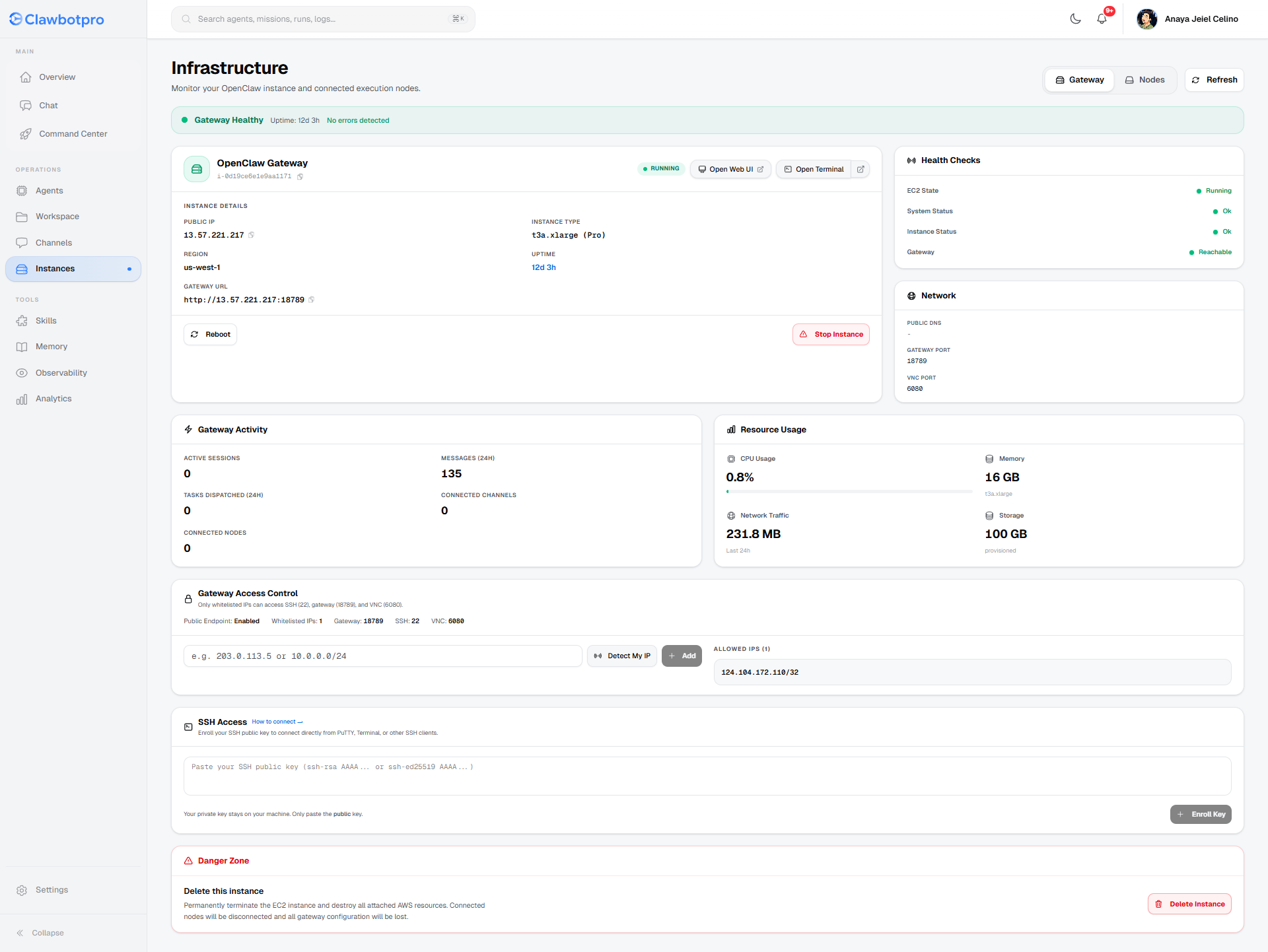
Instance Overview & Lifecycle Controls
The primary panel provides the crucial networking and lifecycle information required to interact with your instance.
- Instance Details: Identifies your assigned Public IP, AWS Region (e.g.,
us-west-1), Instance Type based on your tier (e.g.,t3a.xlarge), and the secure Gateway URL endpoint. - Quick Actions: If your network security allows it, you can jump straight into the native Open Web UI or Open Terminal running directly on your instance via ports 6080 and 18789.
- Lifecycle Management: Direct controls to safely Reboot or Stop the instance. The UI communicates securely with AWS APIs via
/api/openclaw/instanceto handle gracefully stopping the OpenClaw daemon before shutting down the hardware.
Health Checks & Resource Usage
Monitoring the hardware is as important as monitoring the agents. We continuously pull AWS telemetry to ensure your system isn't degraded or running out of memory during intense operations.
- Health Checks: Validates raw AWS EC2 state, system status, and OpenClaw Gateway reachability. A green "Ok" guarantees the underlying hypervisor and networking are stable.
- Resource Usage: Displays real-time CPU consumption, allocated Memory (GB), total Network Traffic over 24 hours, and provisioned Storage. If your agents execute heavy browser-based web scraping, memory will spike. Use this panel to diagnose Out-of-Memory (OOM) errors.
- Gateway Activity: A real-time overview of current active sessions, daily message throughput, tasks dispatched, and active external nodes paired to your workspace.
Gateway Access Control (IP Whitelisting)
By default, your Virtual Private Cloud (VPC) is locked down tight. No external traffic can penetrate your instance. The Gateway Access Control section allows you to open narrow ingress rules.
- Detect My IP: Quickly detect and add your current public IPv4 address. The platform will format it as a
/32CIDR block and inject it directly into the AWS Security Group. - Allowed Ports: Whitelisting an IP securely opens port
22(SSH), port18789(OpenClaw WebSocket Gateway), and port6080(Remote VNC) exclusively to that trusted address.
SSH Access & Danger Zone
For advanced developers who need root access to their execution node to install system-level packages (like custom Chromium builds or Python binaries):
- SSH Public Key Enrollment: Simply paste your local
ssh-rsaorssh-ed25519public key. ClawbotPro will seamlessly sync the key to the instance'sauthorized_keysfile via the/api/openclaw/ssh-keyendpoint, allowing you to establish a secure shell via PuTTY or macOS Terminal. - Danger Zone (Delete Instance): This operation permanently terminates the EC2 instance and tears down all attached VPC AWS resources. Warning: All local gateway configuration, logs, and files generated in the workspace directory that have not been pulled will be permanently lost.