
Real-Time Chat Studio
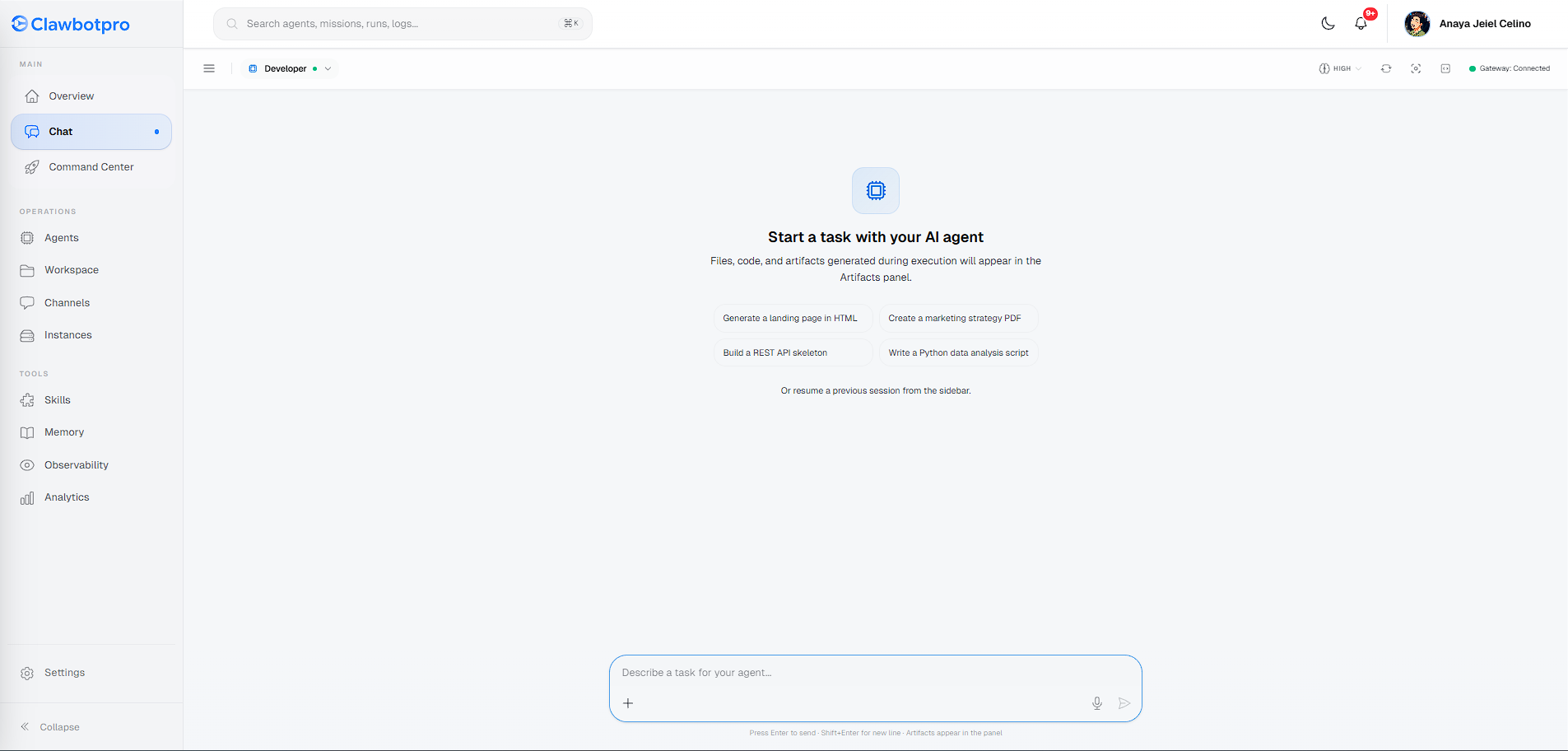
The Real-Time Chat Studio (located at /dashboard/chat) is your primary collaborative environment for steering autonomous AI agents. Unlike traditional HTTP-based chat applications, ClawbotPro's chat interface maintains a persistent WebSocket connection directly to your execution node. This allows for zero-latency streaming of terminal logs, reasoning tokens, and multi-file artifacts.
Session & Agent Management
Efficiently managing your context is crucial. The chat interface is divided into functional zones that give you complete control over who is executing your task and where it is saved.
- Agent Hot-Swapping: In the top-left dropdown, you can switch the active agent handling your session mid-conversation. Changing from a "Developer" to a "QA Tester" instantly hot-swaps the underlying system prompt and tool permissions on the Gateway, allowing specialized agents to review each other's work within the same context window.
- Session Sidebar: The expandable left sidebar acts as your file system for conversations. It automatically titles your sessions based on context. You can click to resume past sessions or use the trash icon to permanently delete a session (and its associated workspace artifacts) from your database.
- Graceful Degradation: If your Gateway node (port 18789) goes offline, the UI detects the dropped WebSocket connection. It immediately disables the input field and displays a diagnostic warning, ensuring you don't lose typed prompts into the void.
Core Chat Capabilities
The input bar at the bottom is equipped for complex, multimodal workflows.
- Multimodal Attachments: Click the paperclip icon (
+) to upload documents, screenshots, or code files. The UI securely converts these files to Base64 payloads and injects them directly into the WebSocket stream. The agent's vision models will process these alongside your text prompt. - Generating Images via MCP: If your agent is equipped with an Image Generation skill (e.g., Nano Banana Pro), you can simply type a natural language prompt like "Generate a landing page mockup for a coffee shop". The agent will stream the MCP tool payload to the gateway, generate the image, and embed it inline natively within the chat stream.
- Streaming Tool Blocks: Unlike traditional chat apps that hide the backend, ClawbotPro visually displays collapsible JSON tool execution blocks directly in the chat feed. You can expand these to inspect exactly what commands or API calls the agent is running in real-time.
The Artifacts Panel (Canvas)
Reading hundreds of lines of generated code or complex markdown reports inside a narrow chat bubble is inefficient. To solve this, ClawbotPro utilizes a Resizable Panel Group architecture.
When an agent generates a significant deliverable—such as an HTML document, a Python script, or a comprehensive business plan—the output is automatically streamed into the dedicated Artifacts Panel on the right-hand side of your screen. This separates the conversational context (left) from the actual deliverables (right), allowing you to review the code side-by-side with the agent's explanation.
You can toggle this canvas on or off at any time using the code bracket icon () in the top navigation bar.
Advanced Chat Controls & Focus Mode
Located in the top right corner of the chat header, the advanced controls allow you to fine-tune exactly how the agent approaches your prompt. These tools are designed to give you precise control over cognitive overhead and interface layout.
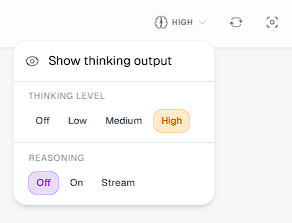
- Thinking Level: This setting configures the token budget allocated to the agent's internal monologue before it takes an action. Available tiers include Off, Low, Medium, and High. Raising this level gives the agent more time to deliberate on complex architectural questions but increases token costs.
- Reasoning Logic: Toggles advanced reasoning for supported models (like OpenAI's o1 or Gemini Thinking). You can set this to Off, On, or Stream. When set to Stream, you will literally watch the agent's internal thoughts arrive in real-time before it acts.
- Show Thinking Output: A visibility toggle (represented by the eye icon) that shows or hides the raw reasoning blocks inside your chat log. Hiding it keeps your chat clean, while showing it is incredibly useful for debugging why an agent made a specific decision.
- Reload Chat Data: The refresh icon () resynchronizes your WebSocket state by fetching the latest message history directly from the Gateway. Use this to restore context if you temporarily drop your network connection, without needing to perform a hard refresh of the browser window.
- Focus Mode: The expand icon removes the left navigation sidebar and the top page header. This dynamically applies the
chat-focus-modeclass to the document body, expanding the chat and Artifacts canvas to 100% viewport width, offering a distraction-free environment for deep "vibe coding".